
Peel 3D is a windows desktop software application for visualizing live motion capture data. It is currently in active development and available for early alpha testing.
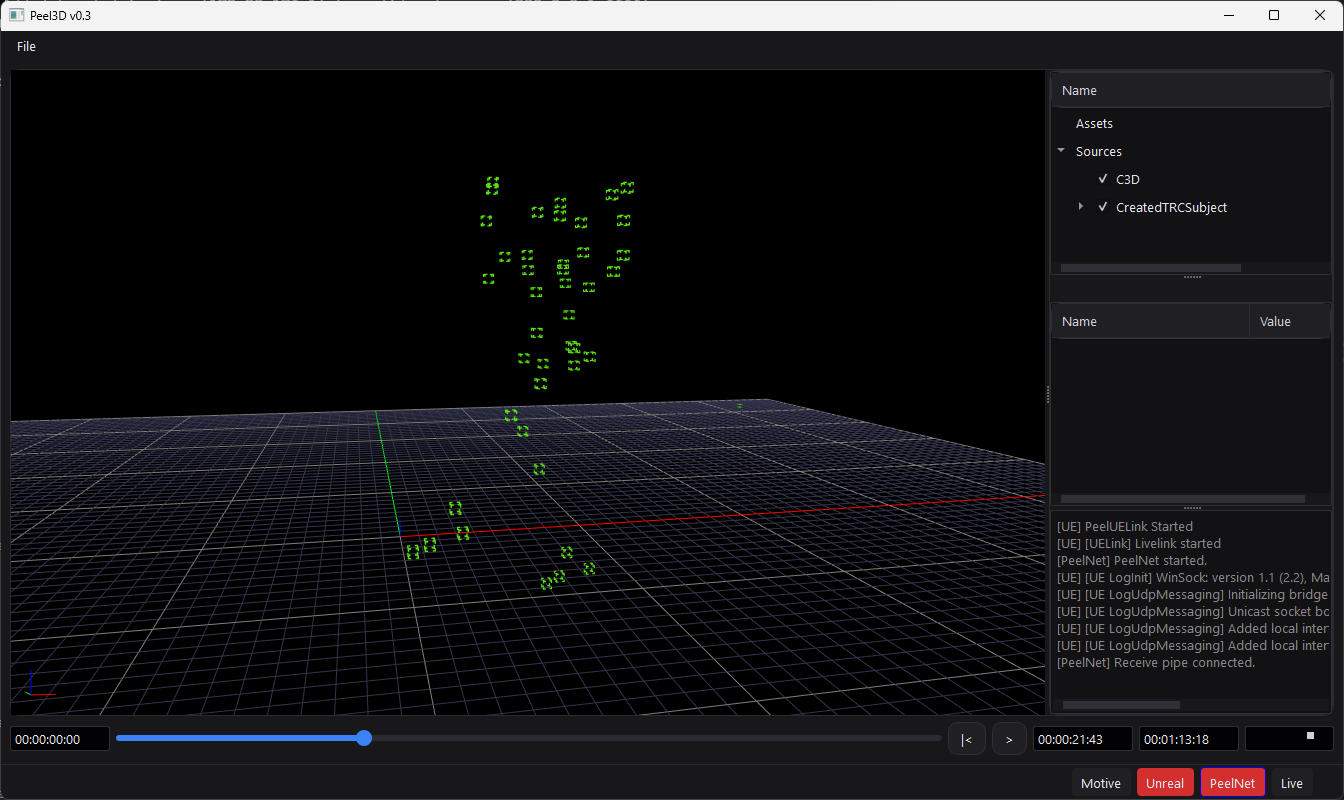
The current features (Feb 2026) are:
- Loads c3d (animated)
- Loads fbx bones and skinned mesh (no animation support yet)
- Connects to Motive to receive live data
- Sends data to Unreal Engine using the message bus (no plugin in UE needed)
- Sends data to other copies of Peel3D over the internet, facilitating remote motion capture sessions.
Downloading
The latest builds can be downloaded from: https://files.peeldev.com/info/peel3d
– check regularly for updates! –
Navigation
Left Mouse Button – Orbit
Right Mouse Button – Track in / out
Middle button or combined left/right button – Track left / right
File -> Settings
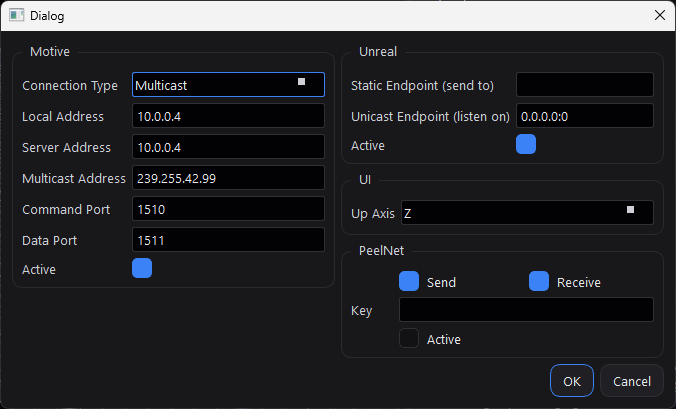
Motive Settings:
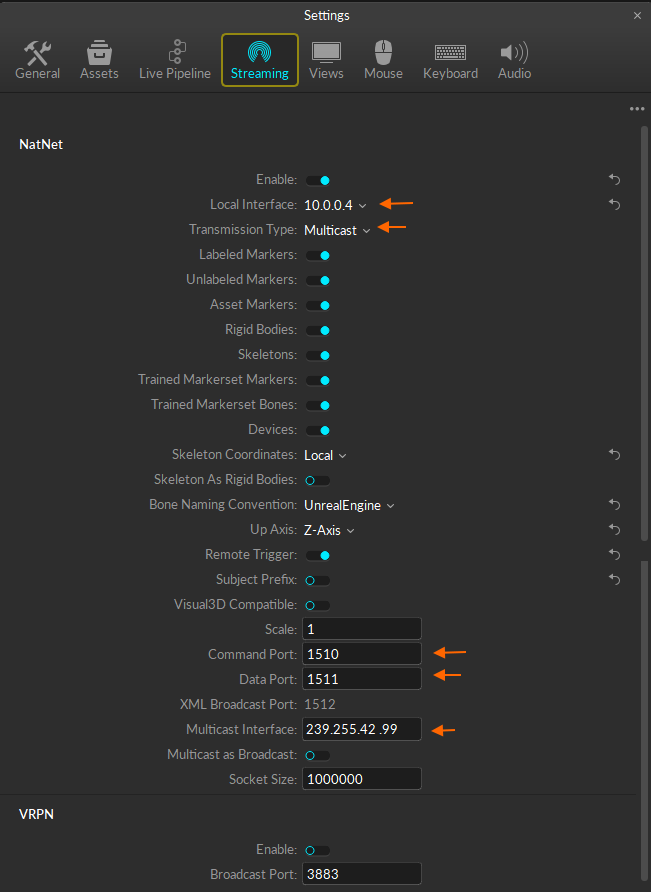
Connection Type: Multicast or Unicast – matching setting in motive
Local Address: Address of computer running Peel3D
Server Address: Address of computer running motive
Multicast Address: Matching Motive setting if using Mulitcast
Command Port: Usually 1510
Data Port: Usually 1511
Active: Check to enable connection to motive.
Unreal Settings:
Static Endpoint: Address and port of computer running Unreal
Unicast Endpoint: Address and port of computer running Peel3D (or 0.0.0.0:0 )
Active: Check to enable connection to unreal.
PeelNet Settings
Check “Send” to replicate data to other copies of Peel3D.
Check “Receive” to listen for data from other copies of Peel3D.
Key does not do anything (yet), later it will provide access to a “session”. Currently there is only one session that anyone can transmit and receive from.
C3D Data
The application can load in c3d data and play back the animation. Use File -> Import to load in the c3d file.
Live Mocap Data
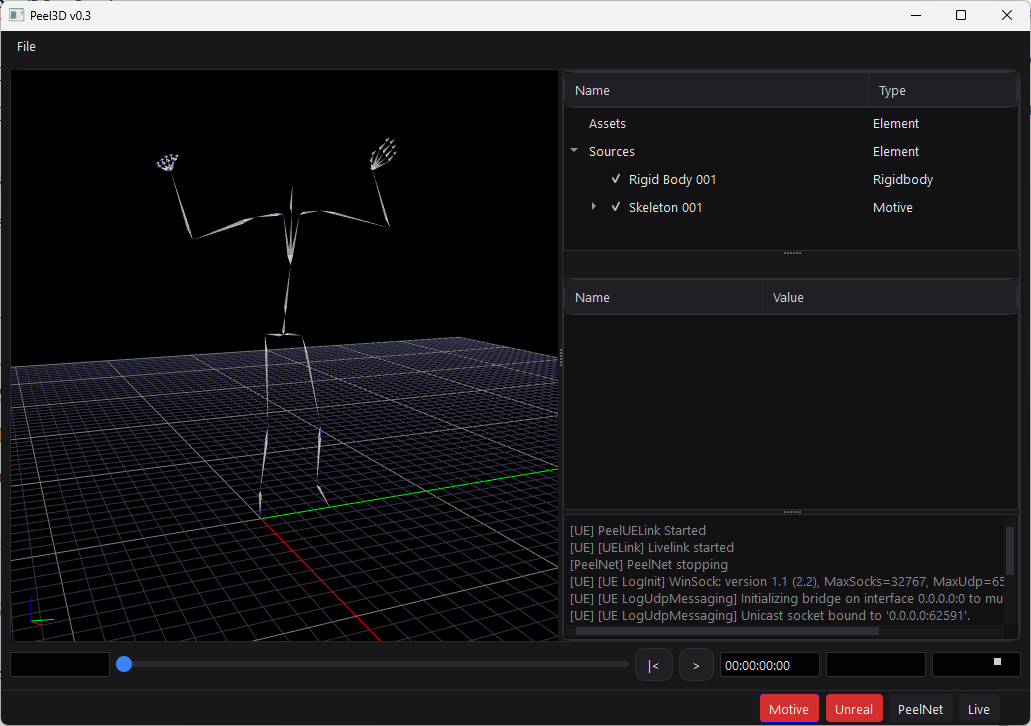
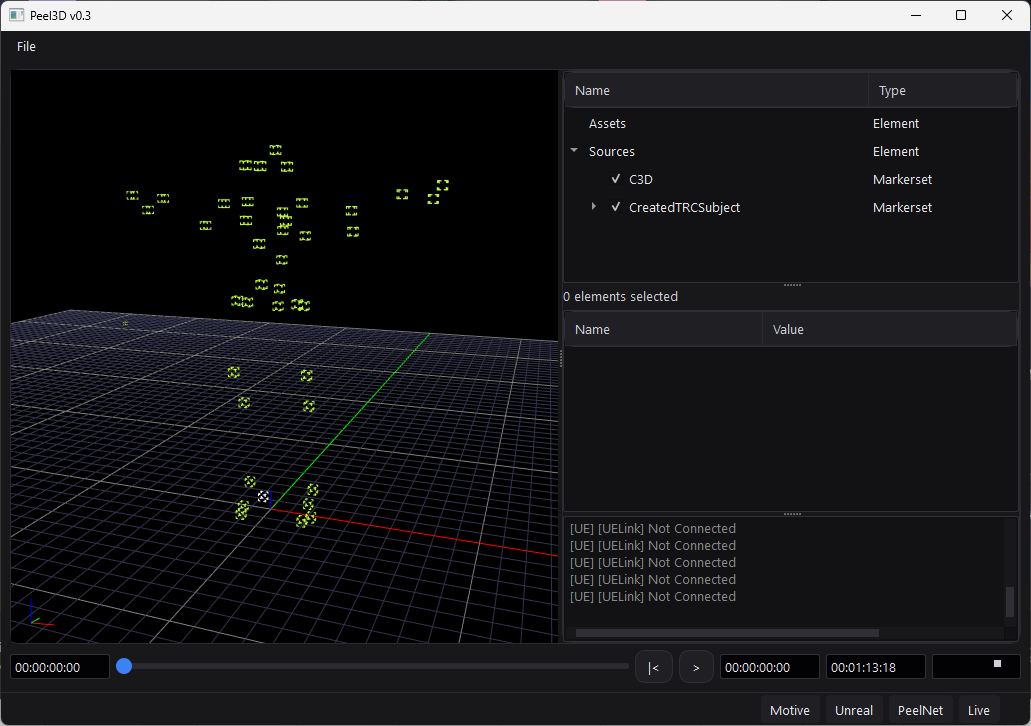
Live motion capture data from Motive will appear in the 3d viewport as a skeleton and on the Properties panel on the right under “Sources”.
3d Models
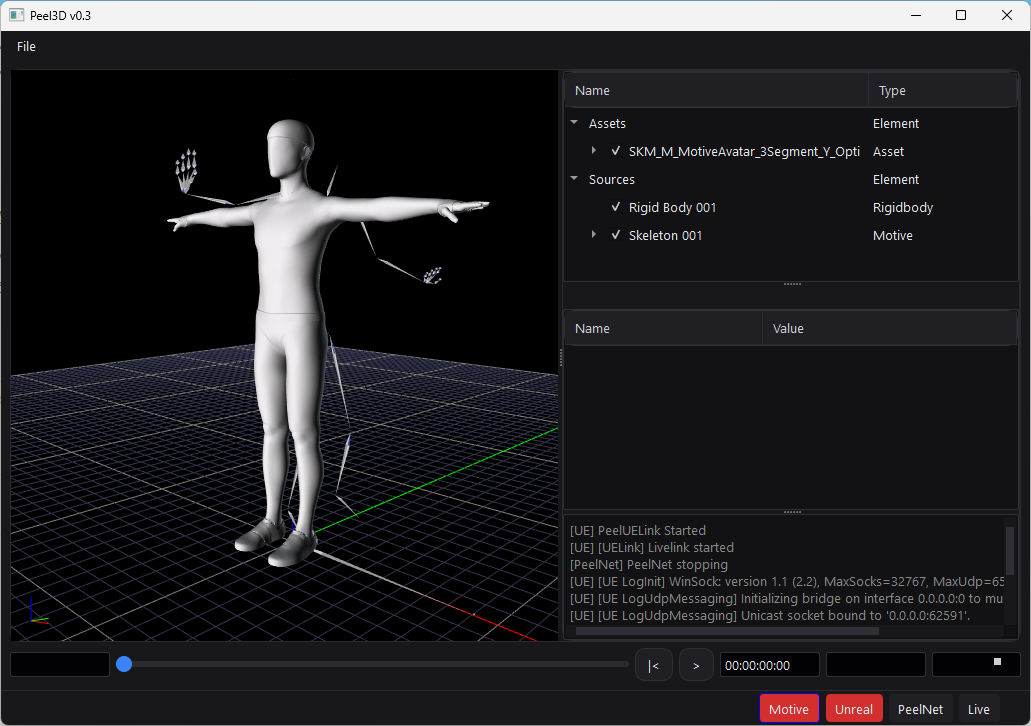
When loading a 3d model in to the application, it will first appear in the “Assets” list on the right. Ideally the fbx file should have one top node per character that includes the mesh and the bones. Skinned mesh are supported.
Motive Meshes (exported from Unreal) can be found here: 🔗 LINK

To apply a mesh to a source as a copy/instance, select the top node of the source, and double click on the asset field. The joint hierarchy and joint orientation must match the incoming data stream.
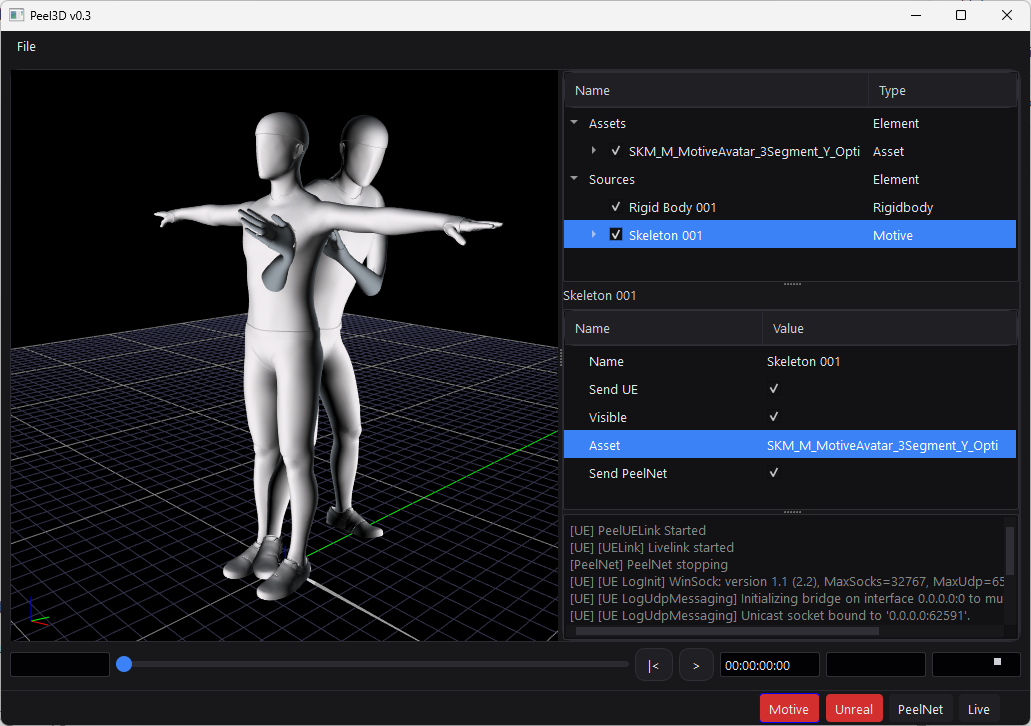
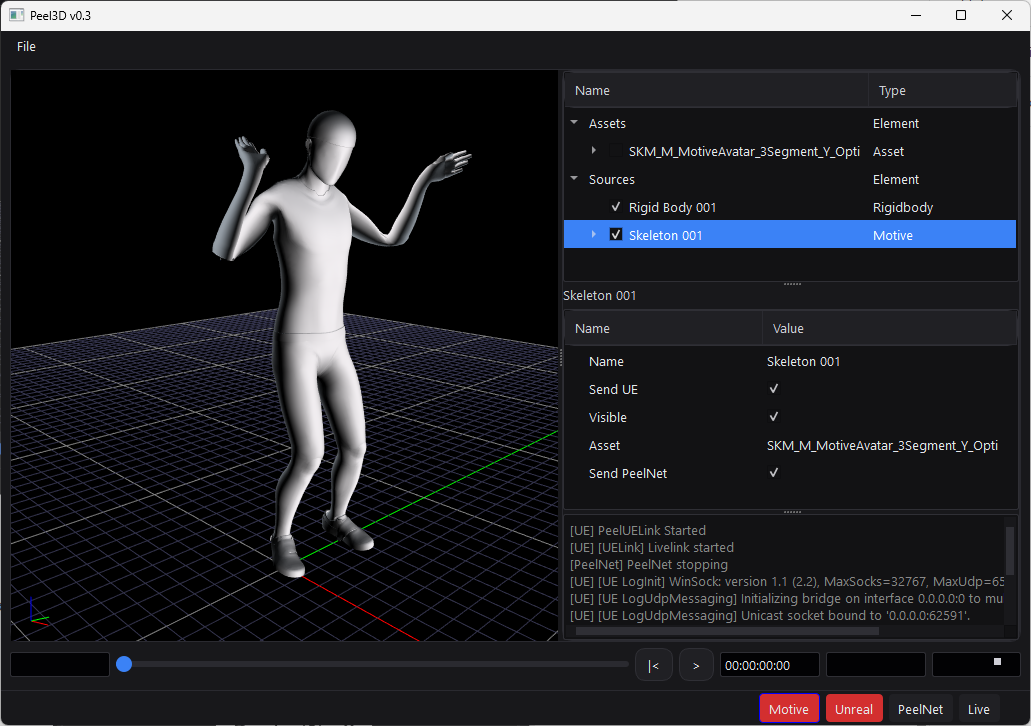
To hide the original asset that was loaded in, uncheck it in the assets tree:

You should see the live data with the mesh applied.
Unreal Engine
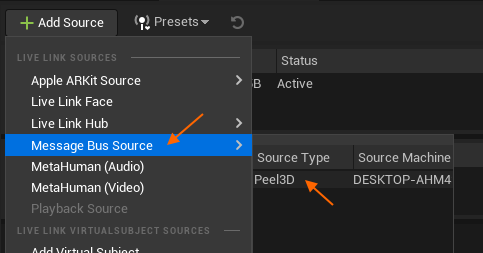
If Unreal is enabled in the settings, the motion capture data should be available as a live link source, via the message bus, so you don’t need to add any plugins.
Future Features
Here are some features we are planning to add – let us know which ones you think we should prioritize:
- Saving an FBX file per take, triggered by PeelCapture
- Loading FBX files with animation
- Vicon Support
- Live Retargeting.
- Axis Conversions – Y up to Z up, etc.
- VCam support
- Moving sources around
Feedback
Please email support at peeldev dot com with any questions or comments.
Thanks for checking this new software out!