
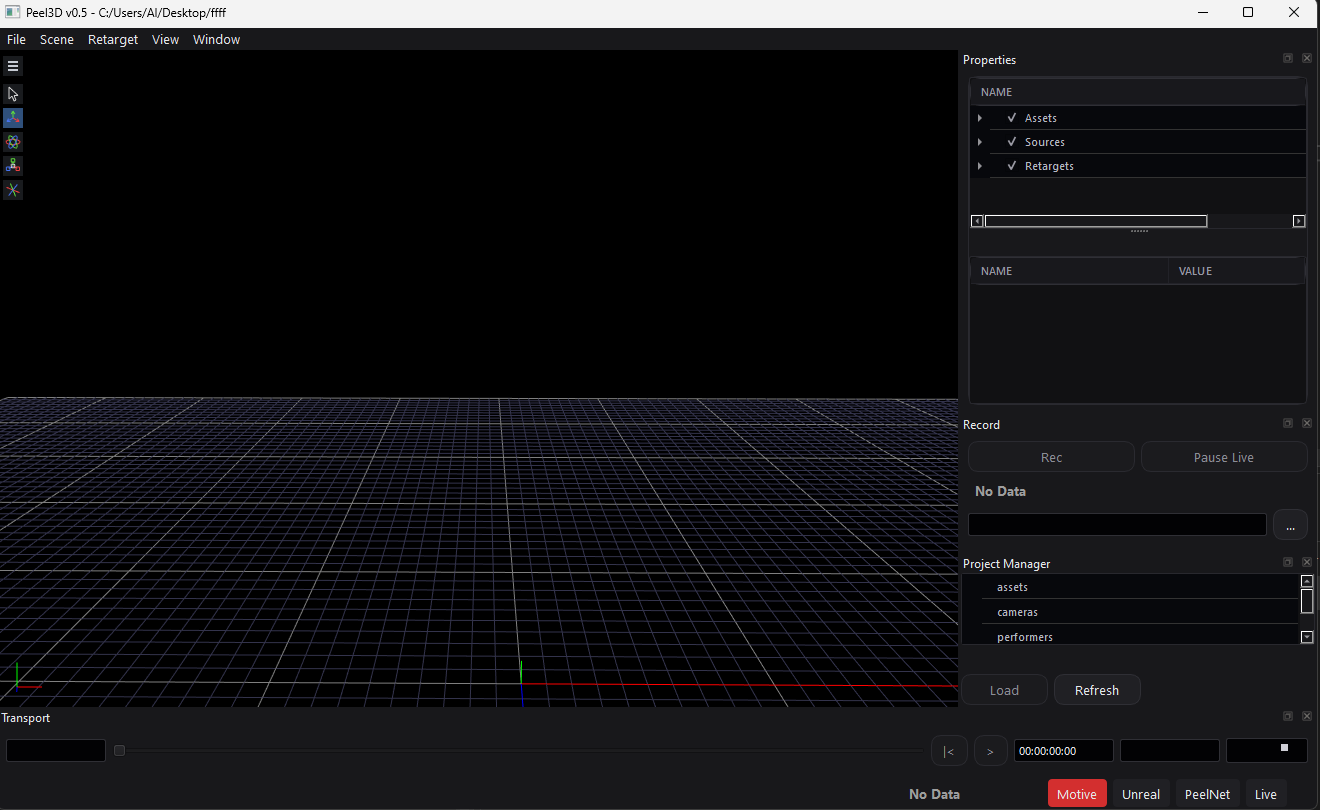
Peel3D can be downloaded from here:
Join the discord server for support / updates:
This software has has the following features:
- Receives live data from motion capture devices.
- Visualizes the live data on a merged skinned with simple assignment / merge
- Retargets the data on to another skeleton, maintaining timecode/sync
- Records an FBX or USD file per take, triggered by PeelCapture
- Plays back recorded data
- Sends data to Unreal/ UEFN using the message bus, no plugin in unreal required.
- Replicates data to other Peel3D applications over the internet using a PeelNet cloud relay, allowing remote motion capture sessions.
3D Viewport controls:
Left Click – orbit
Middle click – track left right / up down
Right Click – track forward / back
3D Viewport buttons / icons
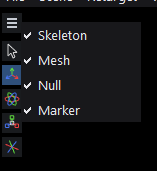

The Hamburger at the top left will pop up a menu to enable showing or hiding object types in the scene.

The arrow icon enables selection mode in the 3d viewport.

The Axis icon puts it in translation mode

The Sphere/Circles icon puts it in rotation mode

The Boxed axis icon is translation mode

The last axis icon at the bottoms switches between global and local. When the axis is level it is in global mode, when it is rotated it is in local mode.
Properties Window
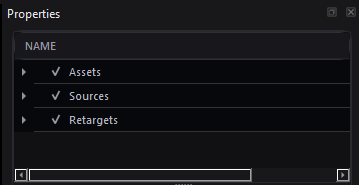
The Properties window (top right) has three main sections: Assets, Sources and Retargets.
Assets are the 3D rigged character models you load in to the scene. They should contain skinned geometry and joints to be animated. They can be merged with sources or used to retarget data on to. The merge is not done when the asset is loaded, it is handled dynamically by the application. You only need to load an asset in to the application once, it will be copied and merged the application, assigned using a dropdown menu.
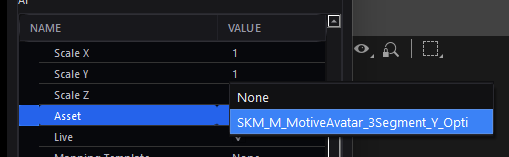
Sources are created automatically by incoming mocap data. You do not load or create sources, they will be spawned from incoming live or recorded data. A source can have an asset applied to it by selecting it from the asset property dropdown menu. After choosing an asset for the source, the mesh and bones for that asset will be shown for the source instead of a bare skeleton, driven by the live or recorded data. This allows visualization of the motion capture data with a mesh. This is optional, but encouraged as it makes it easier to see issues with the data.
Retarget: You can retarget source data to any other asset using a retarget constraint. The resultant retarget will be created in the Retarget list. A retarget setup has 4 main properties:
Source – Performer, live or recorded data of a performer
Source T Pose – A TPose reference pose to calibrate the retarget mapping
Target Asset – The Character Asset to retarget the data on to.
Target T Pose – A TPose reference to calibrate the retarget mapping.
With those 4 properties defined a new copy of the target will be created that is driven by the source data, applied to the target skeleton and mesh.
Settings Dialog
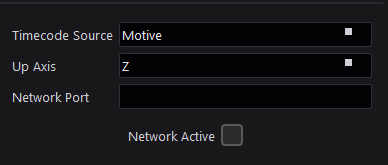
Timecode Source: The authority source to that all timecode values are tracked against. This should be one of the mocap feeds that has the timecode recorded at aqusition.
Up Axis: Up axis for the UI. Can be Y up or Zup.
Network Port: Set the port number to connect to other “Peel” products.
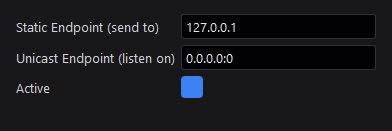
Message bus connection for Epic Games Unreal Engine
Static Endpoint: Ip address of pc running Unreal to send data to.
Unicast Endpoint: Local address of network interface to listen for connections on. Use 0.0.0.0:0 for “any”.
Active: Check the box to connect to unreal using the message bus.
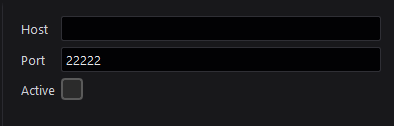
The connection settings for live mocap data from Qualisys

Replicates data between instances of Peel3D
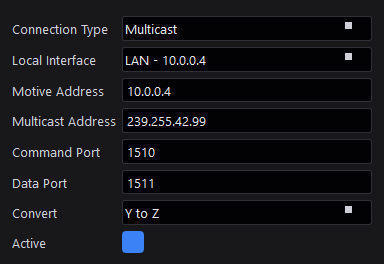
The connection settings for live mocap data from Motive / Optitrack
File Import Dialog

Importer: The method of importing. FBX SDK uses the official fbx sdk by autodesk, OpenFbx uses an alternative open source importer.
Load As: Asset: Mesh and Skinned geometry to use as an Asset. Performer: skeleton and animation to use as an animated source.
Take: The take to load when Load As is set to “Performer”
Name: The name of the item as it will appear in the application
Axis Conversion: Modify the data during import to change the from an alternative axis representation
Meshes: The skinned geometry to import (LOD)
Quick Start
- Launch the app.
- File -> New Project
- Create a new folder somewhere and select it.
- File -> Settings and set Motion capture source settings
- File -> Import an asset to represent your motion capture data (source)
- File -> Import an asset to represent your animated character (target)
- Properties Panel -> Sources -> Select a source by name
- Scroll down in the property list below and assign an asset to it.
- Have the performer do a T Pose
- Properties Panel -> Sources -> Performer Name -> Right click and create Pose.
- Name the Pose “[Performer Name] TPose” or something else you can use to identify this pose later
- Pose the Target asset in a TPose
- Right click on on the top node of the asset and choose “Save Pose”
- Name the pose “[Asset Name] TPose” or something else you can use to identify this pose later
- Retarget Menu -> Create Retarget Constraint
- Properties Panel -> Retargets -> Select the created Retarget
- Scroll down in the property list and assign Source and Target Asset properties using the dropdown menu
- Scroll down in the property list and Assign “Src Pose” to being the TPose of the performer
- Assign “Tgt Pose” to being the T Pose of the character. If this is not set it will use the pose of the loaded asset.
- In Unreal Engine Add a new “Message Bus” live link source.
