All of our products use the same proprietary licensing system.
Typically licenses are provided as an annual term, but other terms are available.
Once a license is activated on a PC, the software will continue running until the term expires.
One license per active instance: A single license covers one copy of the software running at a time. If you need two copies running simultaneously — for example, two machines on stage at the same event — you’ll need two licenses.
Multiple installations are allowed: You can install and activate the software on more than one PC under a single license, as long as only one copy is in use at any given time. For example, using it in the office and then later on stage is perfectly fine.
Licenses can’t be transferred: Once a license is activated on a PC, it can’t be moved to a different machine.
License Tool
When the software runs for the first time, you may see the License Tool dialog and it can be accessed any time via the help menu.
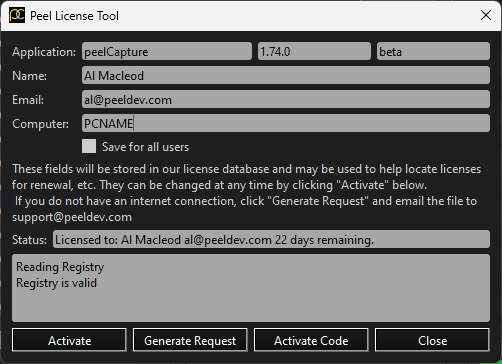
Enter an actual name and email so we can find the record in the license database to update. The name can be a company name or individual name.
If you check “save for all users” the license data will be saved in the “All Users” registry so any user on the pc can access the license.
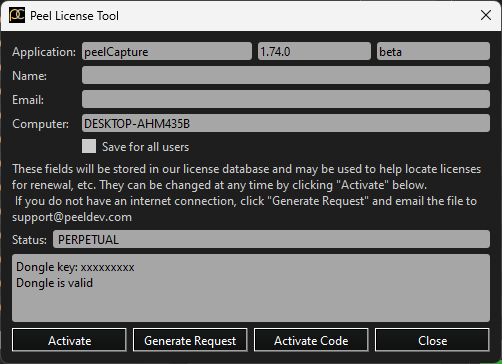
The status field will show the current status of your license, including how many days are remaning or it will say “PERPETUAL” if a valid dongle is found.
Click “Activate” to upload hashed data that uniquely identifies the computer along with your name and email. Any updates for the license will be downloaded and applied. This requires an internet connection to get the update, but after the update is applied the software will run without needing to check the license online.
If the computer does not have access to the internet, click Generate Request to create a file that needs to be emailed to support@peeldev.com and we will send you a code back that can be pasted in to “Activate Code”.
License Dongles
As licenses are applied to a specific PC for the license term, if you need to move the license around or want to order a perpetual license, we recommend purchasing a license dongle. The dongle must be purchased from us – we burn your license to the dongle and mail it to you.
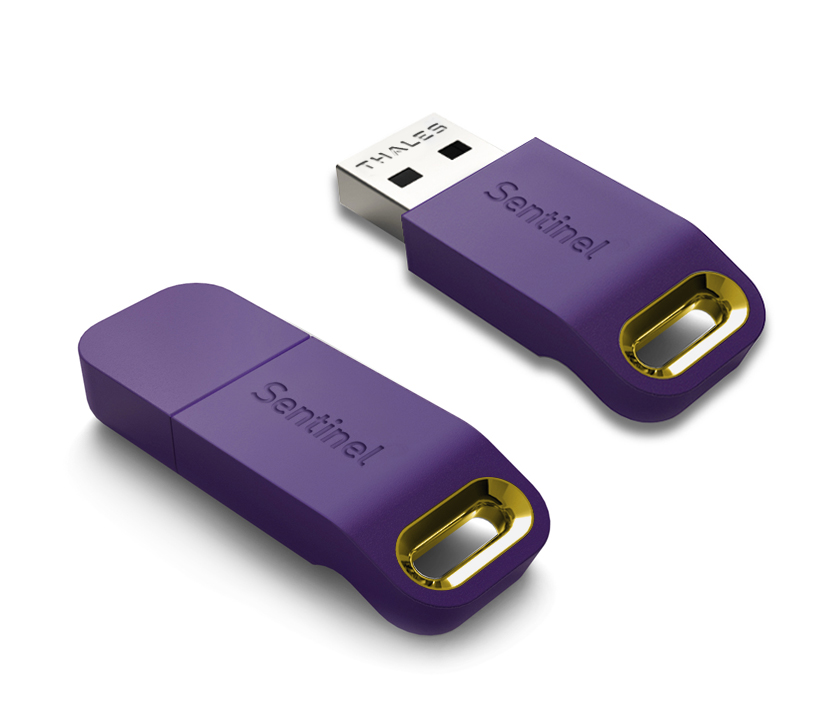
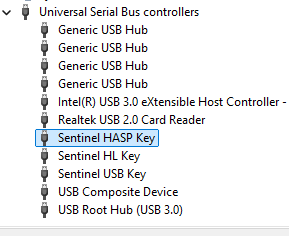
The dongle requires a license to operate. The windows device manager will show the device in an error state if the driver is not working.
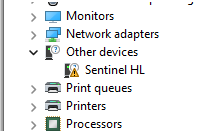
The driver can be downloaded from here: supportportal.thalesgroup.com – “Sentinel LDK Windows GUI Runtime Installer”
After the driver is installed the error device should be removed from “Other Devices” and should appear as a regular USB Device.
The license tool should show “PERPETUAL” if the dongle is found.